Where it started: the PI-Installer

Everything began with a small PI-Installer: a tool focused on installation and basic configuration on the Raspberry Pi. The idea was simple: fewer scattered one-off guides, and instead a clear path and a UI that does not leave beginners alone in the terminal.

Early on it was clear this would not be “everything in one click”, but transparency (what is happening?), diagnostics (make CPU, RAM and services visible) and careful changes — with backups and hints before anything critical is touched.

What I set out to do

  • Structure instead of chaos: One coherent flow instead of ten contradictory browser tabs — from first setup to real projects.
  • Honest help: No marketing hype; instead clear steps, typical failure modes and pointers to official sources for software (Docker, Samba, OpenSSH, …).
  • Security and operations: Over time, hardened services, safer handling of sensitive data (e.g. sudo), rate limits and documented network practice were added — see the changelog (e.g. version 1.3.8.1).
  • A platform, not a single tool: In-app documentation, a website with tutorials, troubleshooting and community complement the installer instead of replacing it.

How this became SetupHelfer

The PI-Installer grew incrementally: first diagnostics and monitoring so you see system state before you change things. Then project ideas with factual software context, a searchable documentation set, troubleshooting by symptom and a community area for questions with context.

On the technical side the backend expanded (including FHS-style install under /opt/pi-installer/ with config under /etc/pi-installer/ — see changelog 1.3.4.x), plus features such as DSI Radio (Internet radio on the Freenove display), Control Center (display, OLED, peripherals, cloning, …) and Remote Companion documentation (v1.3.8.0).

The website and theme followed the same line: a clear home page, real app screenshots, trademark notices and this “About” section — recently e.g. v1.3.8.2 with hero work, community template fixes and footer updates (see the on-site changelog).

The SetupHelfer name stands for that platform: desktop app + content + exchange. The old PI-Installer name remains part of history and some technical paths; the product you see today is SetupHelfer.

What SetupHelfer can do today (selection)

The desktop app (Tauri + Python backend) includes among other things:

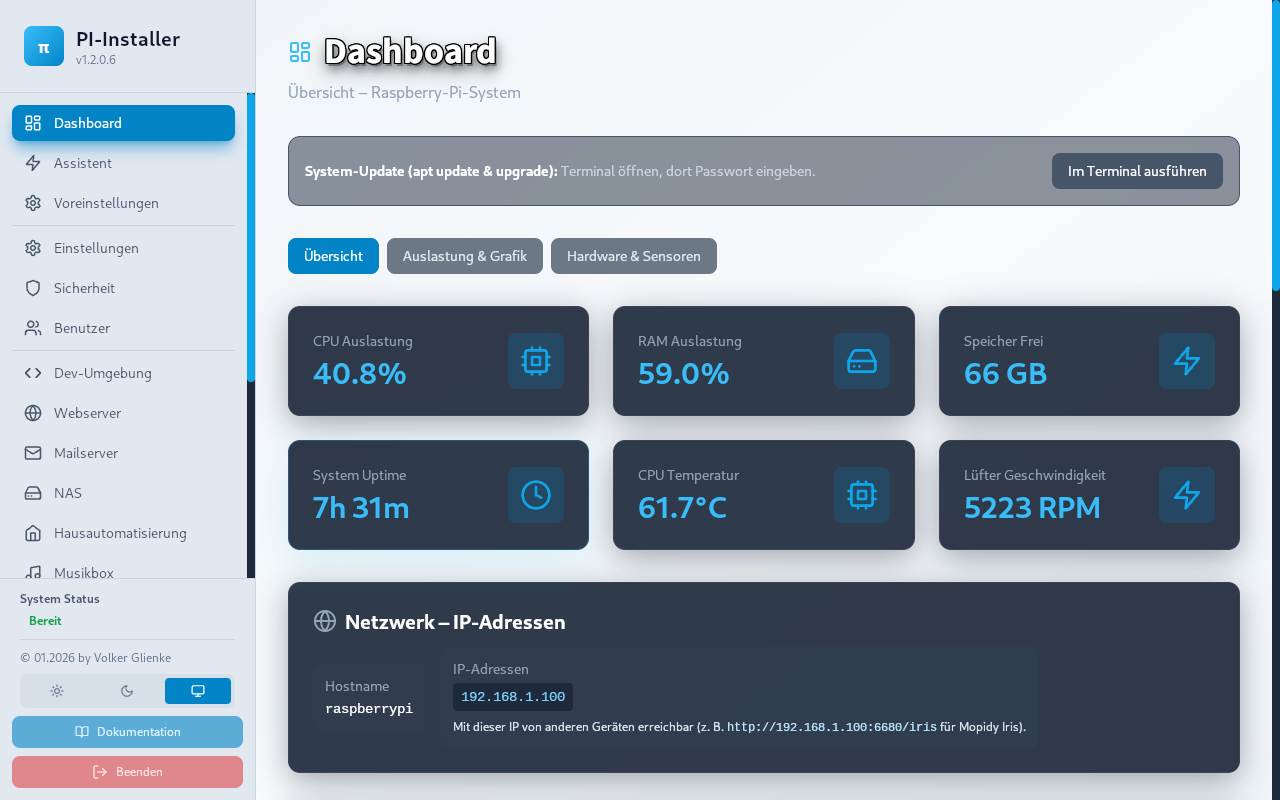
  • Dashboard & system status: CPU, RAM, storage, network, sensors — on Raspberry Pi and on Linux PCs.
  • Setup wizard, presets, app store: Packages and roles for typical tasks (media, NAS, smart home, …) with guidance.
  • Backup & restore, security: Firewall, SSH, updates, users — with risk hints and wizards.
  • Control Center & peripherals: Network, displays, OLED, USB, cloning, … (hardware-dependent).
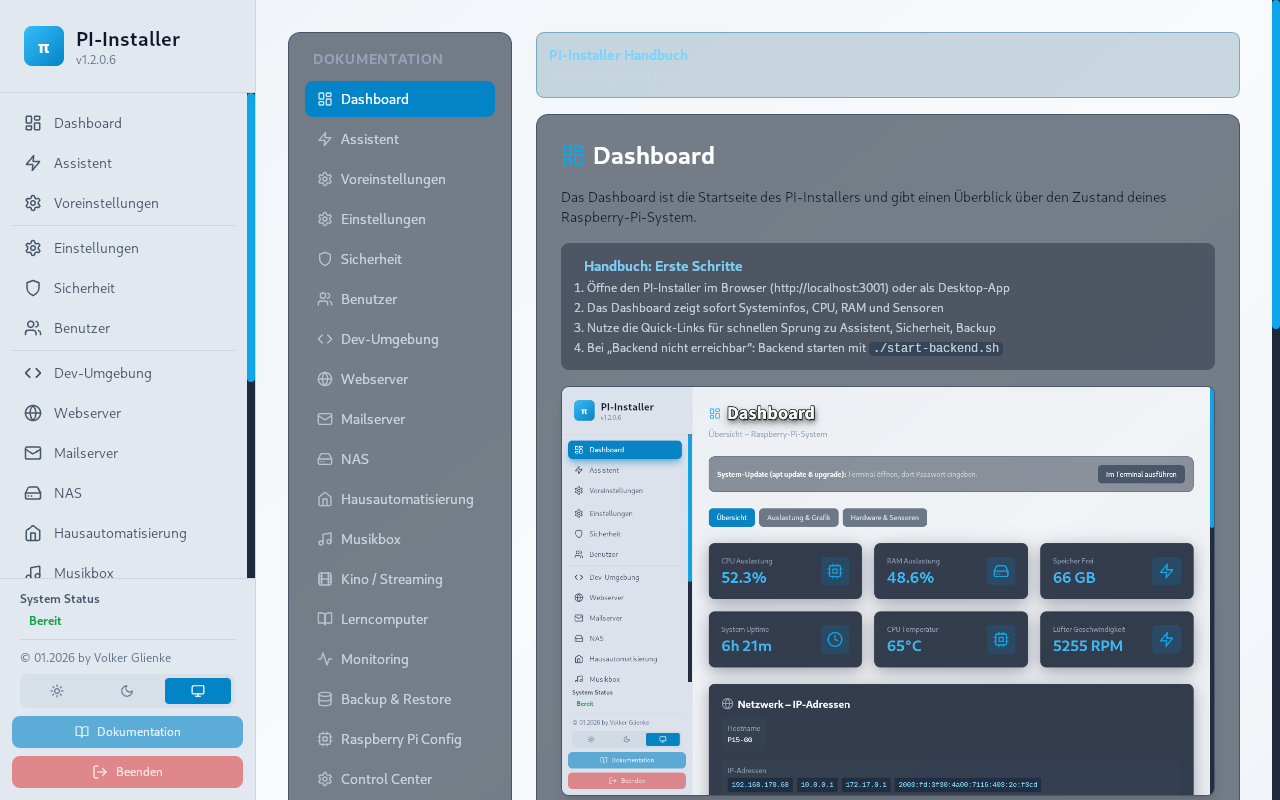
  • In-app documentation: Reference for installation, backup, Docker, diagnostics, …
  • Extensions: e.g. DSI radio settings, remote views, streaming, music box, learning PC — depending on edition and device.

Details and versions: Changelog · Download · Setuphelfer on GitHub

Planned areas in the Setuphelfer ecosystem: Setuphelfer Serverguide · Setuphelfer Cloud Edition (each in preparation).

Milestones (overview)

  1. First installer: Focus on installation and basic configuration on Raspberry Pi.
  2. Diagnostics & monitoring: Make system state visible before deeper changes.
  3. Projects & tutorials: Practical setups with clear software context and official links.
  4. Community & troubleshooting: Discussion and symptom-based help alongside docs.
  5. Website & theme: Public pages, downloads, security notes, bilingual UI in progress.

Challenges

  • Different hardware (Pi models, storage, peripherals) and changing Linux bases.
  • Complexity of networking, permissions and services — especially for beginners.
  • No single “default solution” for everyone: hence emphasis on diagnostics, backups and careful changes.

Result

Instead of an isolated tool there is a platform with a structured entry path, real use cases, documentation and community — without promising “everything in one click”.

Screens from the app

Same screenshot pipeline as on the home page.

Note: Screenshots are captured from the running app (not mockups). Missing images show a placeholder with the expected filename until exported from Tauri.

Dashboard overview
Dashboard
Diagnostics and monitoring
Diagnostics
In-app documentation
Documentation (in-app)

More on this site

Visual context

Photo: Raspberry Pi with Lapdock

Hardware at the desk (see assets/images/ASSET_SOURCES.md in the theme).

Photo: laptop on a desk

Linux desktop context: laptop workspace.

Raspberry Pi, Linux and other product names are trademarks of their respective owners. Names are used only to describe compatibility, use cases and tutorials.